

Your Apartment Guide — Hob, TV & Heating
Make yourself at home. Find help with the hob, TV and heating below.
How to use the hob
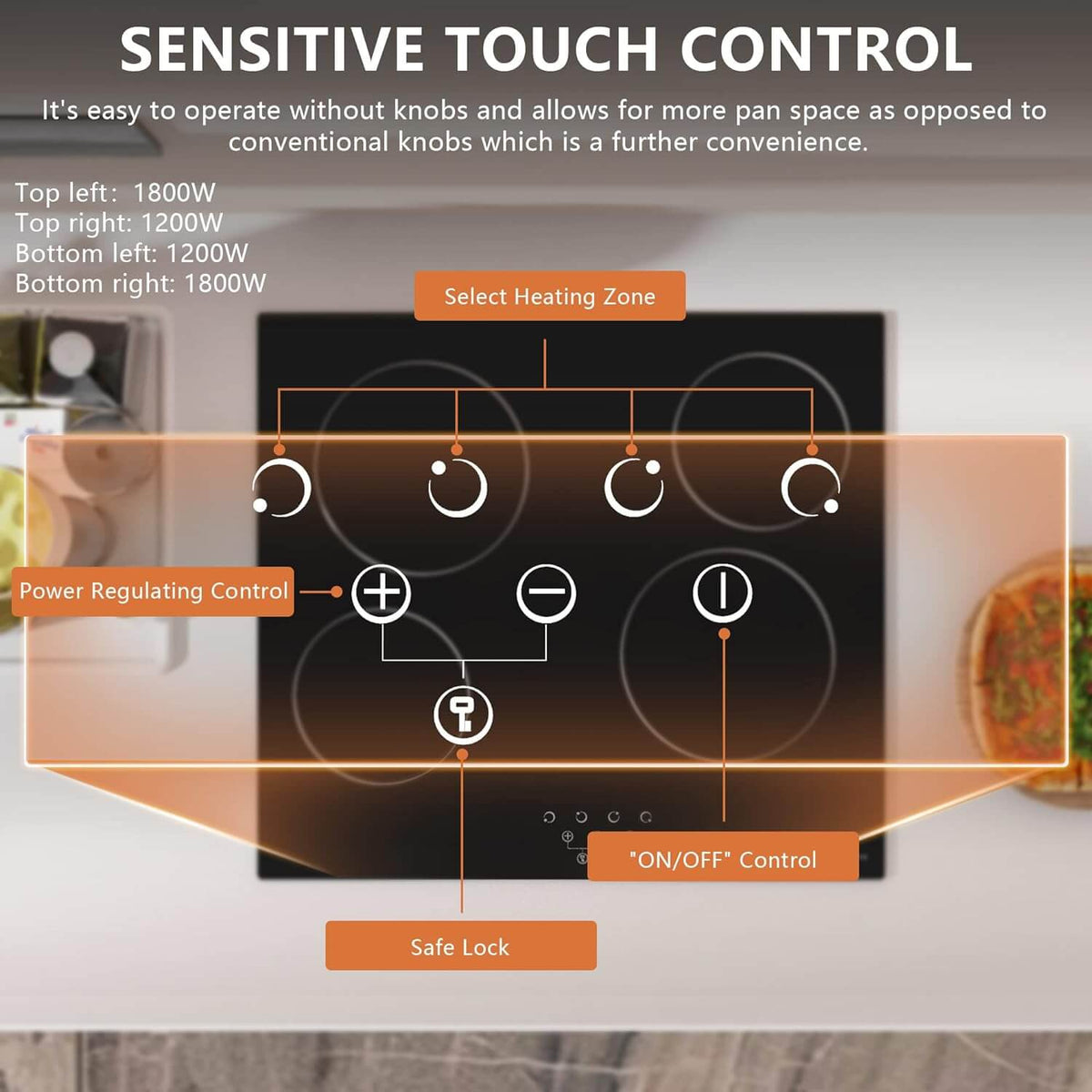
General touch-control guide: button positions and unlocking steps vary by model. The example below is not a photograph of the apartment hob.
⏻ Start with the power button
The ⏻ symbol (a circle with a line at the top) is the on/off control. With dry fingers and a clean, dry control panel, touch this button to switch the hob on. On some models it needs a brief hold. Then select the cooking zone and use its + / − buttons or slider to choose the heat.
Is “L” showing?
L commonly means the child/control lock is on, so the hob will not respond normally. Look for a padlock or key symbol. Unlock by holding that control for a few seconds.
When finished, switch the cooking zones off and use the power control to switch the hob off. The glass will remain hot for a while after switching off.
How to use the TV
Your TV is already set up, with working apps, and should connect to Wi-Fi automatically. You do not need to set it up or install anything. Choose the guide matching the brand on your TV: TCL / Fire TV or LOGIK / Roku TV.
TCL — Fire TV
- Press Power to switch on.
- Press Home (the house symbol).
- Use the arrows to choose an app, then press the centre Select / OK button.
- Use Back to return to the previous screen or Home to choose something else.
- Adjust the sound using Volume + / − and Mute. Press Power when you have finished.
LOGIK — Roku TV
- Press Power to switch on.
- Press Home (the house symbol).
- Use the arrows to choose an app, then press OK.
- Use Back for the previous screen or Home to choose something else.
- Adjust the sound using Volume + / − and Mute. Press Power when you have finished.
If the TV asks for Wi-Fi
The TV should already be connected. If it shows Not connected, use the Wi-Fi details provided in your apartment or contact Lara. Please do not reset the TV or change its main account.
If an app asks you to sign in
Use your own account if required. Some services require a subscription. Sign out inside each app you used before leaving; switching the TV off does not sign you out. Please leave any existing host accounts unchanged.
If the screen says “No signal”
Press Home to return to the apps. If you still cannot watch, send Lara a photo of the screen. Please do not retune channels, deregister the TV or perform a factory reset.
How to use the heating system
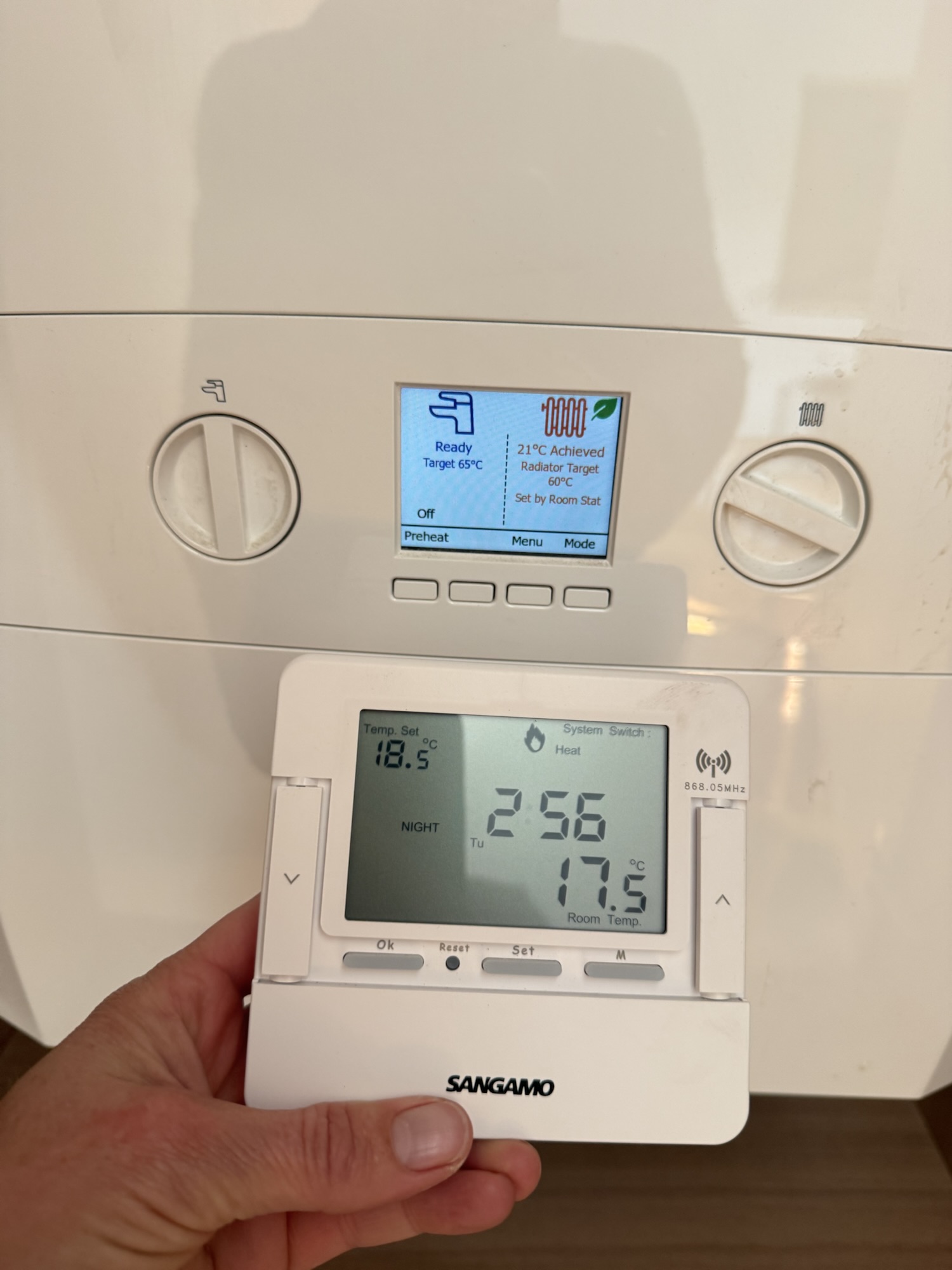
These instructions are for the Sangamo Choice RSTAT5 RF wireless thermostat shown below. If your controls look different, please contact Lara for help.
1. Find the room thermostat
Use the small white Sangamo thermostat shown in the photo, rather than the temperature dials on the boiler. Keep the thermostat in its usual position, away from direct sunlight, draughts and other heat sources, so it can measure the room temperature accurately.
Quick heat — the preferred option for a temporary boost
Press the ▲ up arrow to select a warmer temperature, then press OK to confirm. This temporarily raises the temperature for a few hours before returning to the normal programmed settings—ideal when you just want a little extra warmth.
2. Understand the screen
Room Temp. is the current temperature where the thermostat is sitting. Temp. Set is the temperature you are asking it to maintain. The heating is only requested when the room is cooler than the selected temperature; it does not need to run constantly.
3. Hold a comfortable temperature
The supplied manual describes the following hold setting. It keeps your chosen temperature until you cancel it—it is not a timed boost.
- Press the M button twice to select permanent temperature hold.
- Use the ▲ / ▼ buttons at the sides to choose your temperature.
- Press OK to confirm.
- The screen will show Permanent Hold Temp. Allow time for the apartment to warm up.
4. Return to the normal schedule
When permanent hold is active, press OK to cancel it and return to the normal programmed operation, as described in the manual. Please cancel the hold when you no longer need it or before departure.
If the heating is not coming on
Check whether Room Temp. is already at or above Temp. Set. If it is, the thermostat does not need to request more heat. If the room is colder than the selected temperature and the heating still does not respond, contact Lara and send a photo of the thermostat and boiler screens.
If a low-battery symbol appears, let Lara know. Please leave the existing programme, clock, reset button and installer settings unchanged.
The receiver beside the boiler
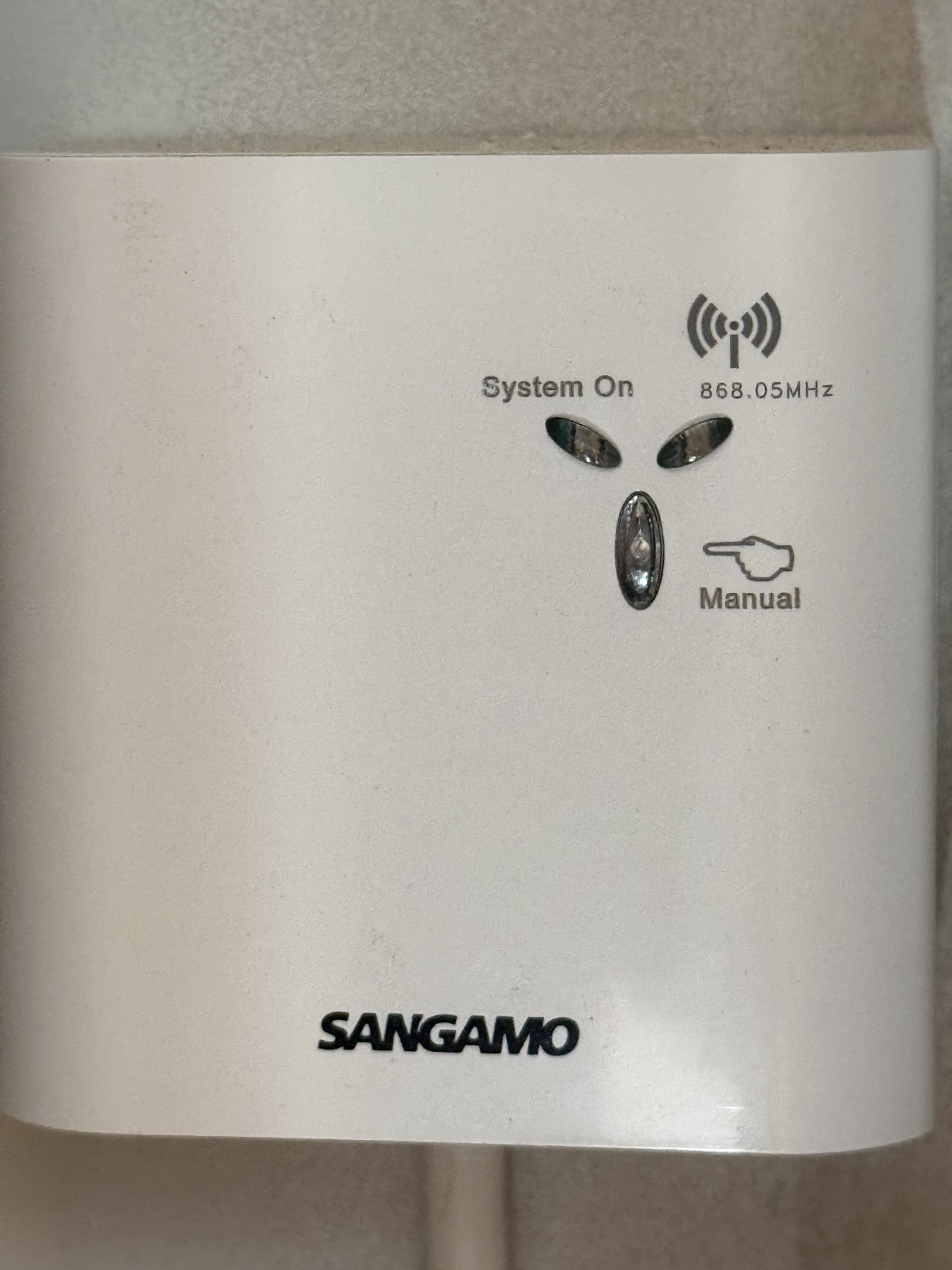
The receiver has a System On indicator, a wireless-signal indicator and a Manual button. The manual describes this button as a fallback if the thermostat signal fails. For normal use, control the temperature with the room thermostat; ask Lara for help if it is not responding. The image you see above with no lights on is the correct status and means everything is working as it should
Photo of the manufacturer’s instructions
Open the temperature-hold instructions in a larger view →
Need a hand?
Contact Lara if you need help with the controls. Please do not dismantle equipment or change installer settings.